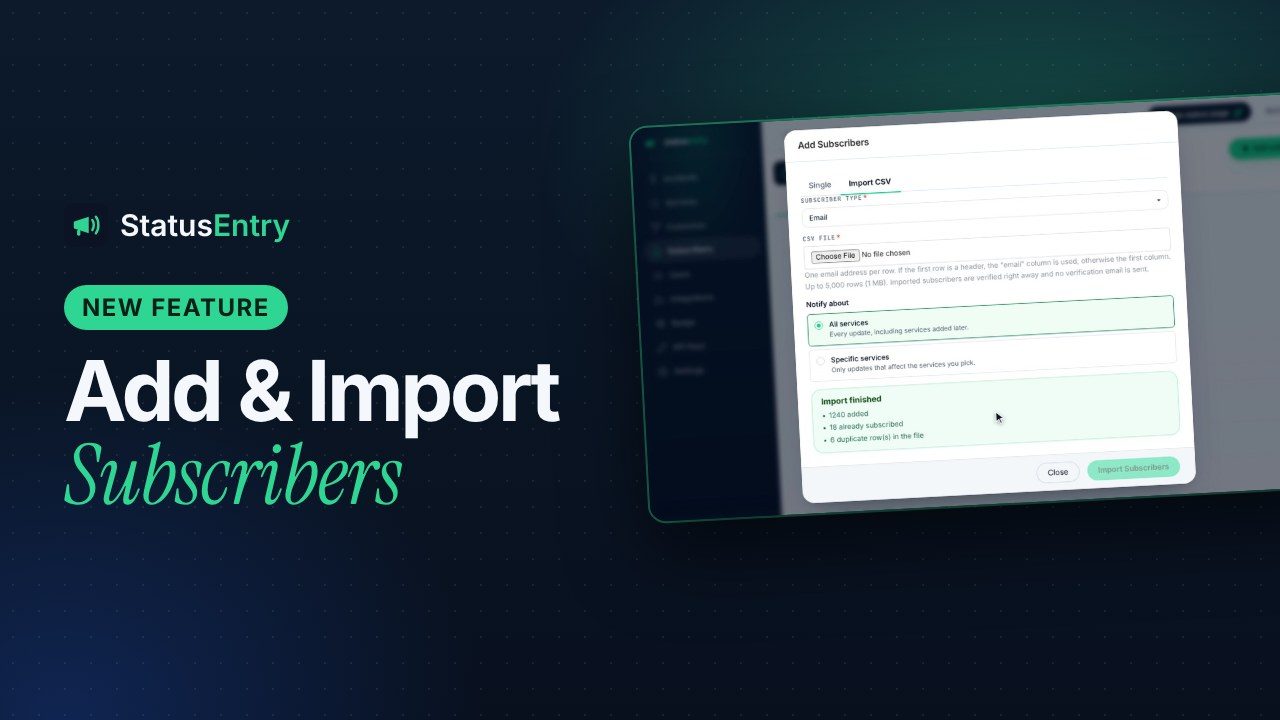
You can now add status page subscribers yourself from the Statusentry admin panel — one at a time, or thousands at once from a CSV file. It's the fastest way to bring your subscribers along when you switch status page tools, and it saves your customers from having to sign up again.
What's new
Until now, the only way to get a subscriber onto your Statusentry page was for them to subscribe themselves and confirm by email. That's still the default for visitors. Admins now have two more options under Subscribers → Add Subscribers:
- Single — add one email address or webhook URL. The subscriber is active immediately; no verification email or webhook is sent.
- Import CSV — upload a file with up to 5,000 email addresses or webhook URLs. Every valid row becomes an active subscriber, and you get a report of what happened to each row.
Both are available on every paid plan, from Start Up at $9.99/month. On Enterprise you can also pick which services the new subscribers follow, using service-based subscriptions.
When you'd use it
- Moving from another status page tool. Export your subscribers from Atlassian Statuspage, Instatus, StatusPal or a homegrown page and import them in one go.
- A customer asks to be added. Account managers often get “please add our ops team to your status updates”. Now you can do it in seconds instead of sending a link.
- Connecting a customer's system. Add their webhook URL directly, so incident updates reach their alerting or ticketing tool without them visiting your page.
- Internal stakeholders. Add your support, sales and success teams so they hear about incidents at the same time as customers.
Add a single subscriber
- In the admin panel, open Subscribers and click Add Subscribers.
- Keep the Single tab, choose Email or Webhook as the subscriber type, and enter the address or URL.
- On Enterprise, optionally pick the services this subscriber should hear about.
- Click Add Subscriber. The subscriber is active right away.
Slack subscribers aren't in this list on purpose: adding Slack requires someone in the receiving workspace to approve the app, so Slack subscribers still subscribe from your status page.
Import subscribers from a CSV file
- Open Subscribers → Add Subscribers and switch to the Import CSV tab.
- Choose Email or Webhook. Each import adds one type, so import emails and webhook URLs as separate files.
- Select your CSV file (up to 5,000 rows and 1 MB).
- On Enterprise, optionally pick the services all subscribers in this file should follow.
- Click Import Subscribers and review the result.
File format
The importer is deliberately forgiving, because CSV exports differ from tool to tool. The simplest file is one address per line:
emails.csv
alice@example.com
bob@example.com
ops-team@customer.io
Exports with several columns work too. If the first row is a header, Statusentry uses the column called email (or email address, mail) for email imports and url (or webhook, endpoint) for webhook imports, and ignores the rest:
export-from-another-tool.csv
Name;Email;Created
"Doe, Jane";jane@example.com;2025-03-01
"Lee, Sam";sam@example.com;2025-06-12- Comma, semicolon (common in Excel exports) and tab separators are detected automatically.
- Quoted values, like
"Doe, Jane", are handled correctly. - Without a recognised header, the first column is used and every row is treated as data.
- Blank rows are ignored. Email addresses are compared without case, so
Bob@Example.comandbob@example.comcount as one. - Webhook URLs must start with
http://orhttps://.
What happens to each row
| Row | Result |
|---|---|
| New, valid address or URL | Added as an active subscriber |
| Already an active subscriber | Left unchanged and counted as already subscribed |
| Subscribed but never confirmed | Confirmed and activated |
| Appears twice in the file | Imported once, the repeat is counted as a duplicate |
| Invalid email or URL | Skipped and listed with its row number and the reason |
| Over your plan's subscriber limit | Skipped and reported, so you know exactly how many didn't fit |
Nothing is half-imported or silently dropped: the summary tells you how many subscribers were added, confirmed, already there, duplicated, invalid or over the limit. You can fix the invalid rows and upload the same file again — existing subscribers won't be duplicated.
Moving your subscribers from Atlassian Statuspage
Switching from Statuspage is the most common reason to import, so here's the short version:
- In Statuspage, export your subscribers to a CSV file from the Subscribers page.
- Create one file with the email subscribers and another with the webhook subscribers. If the export has a header row with an email or URL column, Statusentry picks that column automatically.
- Import each file in Statusentry with the matching subscriber type. More than 5,000 subscribers? Split the file and import the parts one after another.
- If you used component subscriptions, split the email file by component and pick the matching services for each import (Enterprise).
- Slack and SMS subscribers can't be moved this way. Post a short note on your status page asking Slack users to re-subscribe with one click.
Recreating your components, branding and custom domain takes most teams an afternoon. The full checklist is in our Statusentry vs Statuspage comparison.
Plans
| Plan | Price / month | Email & webhook subscribers | Add & import | Pick services on import |
|---|---|---|---|---|
| Free | $0 | — | — | — |
| Start Up | $9.99 | 1,000 | Yes | — |
| Business | $19.99 | 5,000 (plus Slack) | Yes | — |
| Enterprise | $39.99 | 50,000 (plus Slack) | Yes | Yes |
New accounts start with a 30-day Enterprise trial, so you can import your list and check everything before choosing a plan. Create your free account, or email support@statusentry.com if you'd like a hand with a large migration.