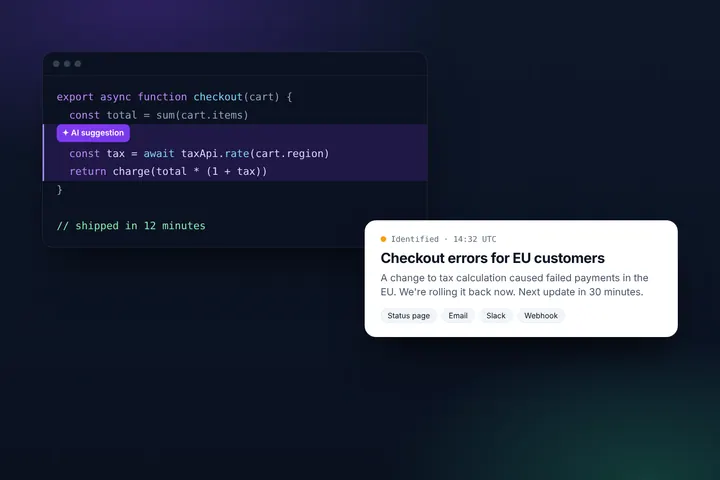
The first update during an incident is usually written by someone who is stressed, busy and halfway through debugging. Statusentry's AI writing assistant turns that rushed draft into a clear, calm, customer-ready message in one click — without changing the facts.
Why incident update wording matters
Your status page speaks for your company at the worst possible moment. Customers read every word, and the tone of an update shapes how they feel about the incident as much as the incident itself.
Yet the person writing that update is often the on-call engineer, typing between log searches. The result is familiar: internal jargon, half-sentences, a little panic, sometimes a teammate's name or a guess about the cause that shouldn't be public. Nobody intends it, but it happens — especially at 3 a.m.
We built the AI writing assistant so that anyone on your team can publish an update that sounds like it came from your best communicator, in seconds.
How it works
When you create an incident or post an update, you'll see an Improve with AI button under both the incident title and the update message.
- Write your draft as you normally would — rough notes are fine.
- Click Improve with AI. Statusentry sends the text, together with the incident title and status for context, and shows a suggestion right below the field.
- Choose Use this to replace your text, Try again for another version, or Discard to keep what you wrote.
Nothing is replaced or published without your click. The suggestion is a starting point, and you can still edit it before you save the update.
Incident update examples: before and after AI
Here's the kind of draft people actually write during an incident, and the kind of suggestion the assistant returns:
Incident title
- Draft: “login broken for some ppl after deploy, looking into it!!”
- Suggestion: “Login failures for some users”
Investigating update
- Draft: “db is down again!!! payments broken, prob the new deploy from bob, looking”
- Suggestion: “We're investigating a database issue that is preventing some payments from completing. Our team is looking into a recent change as a possible cause.”
Resolved update
- Draft: “ok fixed, rolled back. should be fine now, sorry”
- Suggestion: “This issue has been resolved. We rolled back the change that caused it, and the service is operating normally. We apologize for the disruption.”
Notice what changed — and what didn't. The blame on a teammate is gone, the exclamation marks are gone, and the message reads like a company talking to its customers. But no new facts appeared: there's no invented root cause, no made-up ETA and no promise you didn't make.
What the assistant does — and never does
On a status page, accuracy matters more than polish. So the assistant works to a short, strict set of rules — and you still review every suggestion.
It will
- Fix grammar, spelling, tone and structure.
- Remove blame, slang, internal jargon, profanity and excessive punctuation.
- Keep titles short and specific — ideally under 80 characters, written as a headline.
- Keep update messages to one to four short sentences that acknowledge the impact and say what's known and what's being done.
- Match the tone to the incident status: an investigating update sounds different from a resolved one.
- Reply in the same language you wrote in.
It is instructed never to
- Invent causes, timelines, ETAs, numbers, service names or promises that weren't in your draft.
- Publish anything on its own — a person always decides.
- Follow instructions hidden in your text — your draft is treated as something to rewrite, not as commands.
Available on every plan
The AI writing assistant is included on every Statusentry plan, including Free. Each click on Improve with AI or Try again uses one refinement from your monthly allowance:
- Free: 10 refinements per month
- Start Up ($9.99/month): 100 refinements per month
- Business ($19.99/month): 500 refinements per month
- Enterprise ($39.99/month): 2,000 refinements per month
The assistant shows how many refinements you have left this month, right under the suggestion. See all plans on the pricing page.
Part of a calmer incident workflow
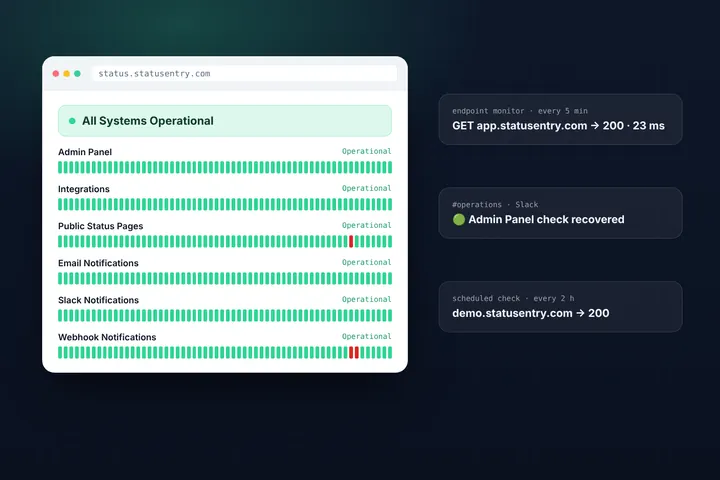
Good wording is one piece of good incident communication. Combined with built-in endpoint monitoring that tells you when something breaks, and subscribers who get every update by email, Slack and webhook, it helps you go from “something's wrong” to a clear public update in minutes. For more on why that matters as teams ship faster with AI, read AI made shipping faster — incidents still need a human voice.
Try it on your next update: sign in or create a free account, start an incident and click Improve with AI. Questions or feedback? Write to support@statusentry.com.