Not everyone wants another email list, and not everyone lives in Slack. Every Statusentry status page now publishes RSS and Atom feeds, so anyone can follow your incidents and scheduled maintenance in the feed reader, chat tool or automation they already use. Nobody has to sign up.
When you post an incident update or schedule maintenance, it's added to the feed. Subscribers' tools pick it up on their next check.
Why offer feeds on a status page?
- No account, no email address. Subscribers paste one URL into their reader and they're done. You don't store their address, so there's no opt-in or unsubscribe flow to manage.
- Updates land where teams already look. Slack, Microsoft Teams and Discord can all post feed items into a channel, so a customer's whole ops team sees your updates in one place.
- Easy to automate. Zapier, Make, n8n and IFTTT can all trigger on a new feed item. Your customers can open a ticket, page their on-call engineer or pause their own deploys when you post an incident.
- Technical users expect them. Developers and SREs look for a feed link on any status page they depend on. Now yours has one.
Where to find the feeds
Click Subscribe on any Statusentry status page and open the feed tab (the RSS icon next to email, webhook and Slack). It shows both feed URLs, each with a copy button. They have the same content, so pick whichever one your tool supports:
| Format | URL | Best for |
|---|---|---|
| Atom | https://status.yourcompany.com/history.atom | Modern feed readers. Atom marks when an entry was updated, so readers can show a new incident update clearly. |
| RSS 2.0 | https://status.yourcompany.com/history.rss | The widest support, including Slack's /feed command and most automation tools |
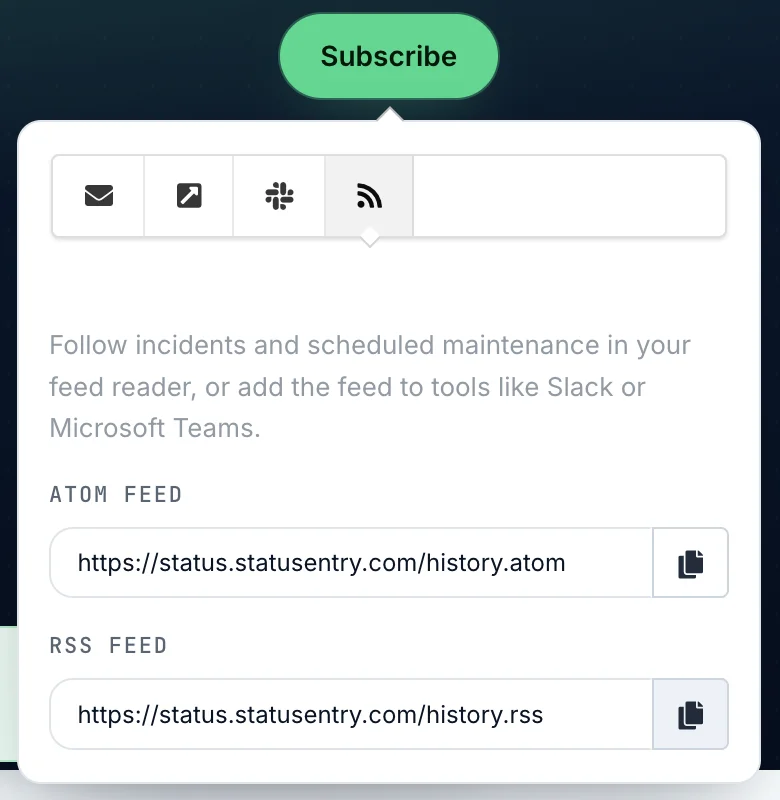
To see them on a live page, open the Subscribe popup on our own status page: history.atom and history.rss.
Each entry is one incident or scheduled maintenance, with a link back to the full details on your status page.
Three ways your customers can use them
In a feed reader
Paste the feed URL into Feedly, Inoreader, NetNewsWire, Thunderbird or Outlook. New incidents show up next to everything else the reader follows.
In Slack, Teams or Discord
In Slack, run this in any channel:
Slack
/feed subscribe https://status.yourcompany.com/history.rssIn Microsoft Teams, add the RSS connector to a channel. In Discord, use a feed bot such as MonitoRSS. Your updates are then posted where the team already talks.
In an automation
Use the “New item in feed” trigger in Zapier, Make, n8n or IFTTT. For example, an engineering team could create a Jira ticket or post to PagerDuty whenever a dependency reports an incident.
Try it
Open your status page, add the feed to your own reader, and post a test incident to watch it come through. Then tell your customers about it: a single line in your docs or onboarding email, such as “Follow our status at <feed URL>”, saves them from asking whether you're down.
Don't have a Statusentry status page yet? Start your free trial.
FAQ
Does Statusentry have an RSS feed for status pages?
Yes. Every Statusentry status page publishes an RSS 2.0 feed at /history.rss and an Atom feed at /history.atom. Both links are in the feed tab of the Subscribe popup.
How do I get status page updates in Slack with RSS?
Copy the RSS feed URL from the Subscribe popup and run /feed subscribe followed by the URL in any Slack channel. New incidents and maintenance are then posted to that channel.
Do subscribers need an account to use the feed?
No. The feeds are public URLs. Anyone can add them to a feed reader or tool without signing up or giving an email address.