When your product goes down, many users don't open your status page first — they search X for your name, or tag your support account and ask “is it down?”. Statusentry's X (Twitter) integration posts your incidents and scheduled maintenance to your X account automatically, so your feed and your status page say the same thing at the same time.
Why post status updates to X?
Your status page is the source of truth. X is where a lot of people go looking for it. Posting incidents there closes the gap:
- It's where people check first. When an app stops working, searching the product name on X is a reflex for many users. A clear post from your account answers the question before they write a ticket.
- It reaches people who never subscribed. Email, Slack and webhook subscribers already hear from you. X reaches everyone else — followers, prospects and customers who don't know your status page exists.
- It cuts down on duplicate questions. One public post replaces dozens of identical replies to “is anyone else seeing this?”.
- It shows you're on it. A visible, timely acknowledgment builds more trust than silence, even when you don't know the cause yet.
Why automate it instead of posting by hand
During an incident, the person writing updates is juggling engineers, support and customers. Asking them to also copy each update into X by hand leads to the usual problems:
- Delays. The tweet goes out 20 minutes after the status page — or not at all.
- Mismatched messages. The wording on X drifts from the status page, and customers notice.
- Access bottlenecks. The social account often belongs to marketing, and nobody on call has the password at 3 a.m.
With the integration, you write the update once in Statusentry. It goes to your status page, your subscribers and your connected X accounts together. Pair it with incident templates and the AI writing assistant and your first public update can go out in under a minute.
How the X integration works in Statusentry
Connecting an account takes a few clicks:
- Open Integrations. In the Statusentry dashboard, go to Integrations and press Configure on the Twitter channel.
- Connect your X account. Follow the on-screen instructions to authorize the account you want to post from.
- Check the connection. The number of connected accounts appears in the top-right corner of the channel card.
- Post as usual. Create a public incident, add updates or schedule maintenance with notifications turned on. Statusentry posts to every connected X account automatically.
Connect more than one account
On paid plans there's no limit on how many X accounts you connect — for example your main brand account and a dedicated status account. Every connected account gets the same post. You can remove and re-add accounts at any time, which is handy when account ownership changes hands. If X is briefly unavailable or rate-limits a request, Statusentry retries the post.
What gets posted, and when
- Every public incident update. The first update and each one after it — Investigating, Identified, Monitoring, Resolved — goes out as its own post, so followers can follow the incident from start to fix.
- New scheduled maintenance. Maintenance is posted once, when you schedule it, with the planned start time in UTC.
Announcing maintenance on X ahead of time is one of the easiest ways to avoid surprise tickets — see how to announce scheduled maintenance for timing and wording.
What a post looks like
Each post follows the same format: a [status] tag, the incident status, your message and a link to the incident on your status page. Maintenance posts show the planned start time instead of a status. You only write the message — Statusentry adds the rest.
Incident update on X
[status] Investigating: Some users can't log in to the dashboard. API and public pages are working. Next update in 30 minutes. https://yourcompany.statusentry.com/incidents/…
Scheduled maintenance on X
[status] Scheduled maintenance (2026-11-07 02:00 UTC): The dashboard will be read-only for about 15 minutes. No action needed on your side. https://yourcompany.statusentry.com/maintenances/…
If a message is too long for X, Statusentry shortens it and keeps the link, so readers can always get to the full update.
Brand account or dedicated status account?
Both work, and many teams use both. A quick way to decide:
| Main brand account | Dedicated status account | |
|---|---|---|
| Reach | Largest audience; everyone sees it | Smaller, but people who follow it want status updates |
| Noise | Incidents mix with marketing posts | Only status updates, easy to scan |
| Good for | Major outages and planned maintenance | Every incident, including minor ones |
| Example | @yourproduct | @yourproductstatus |
Since you can connect more than one account, you can post everything to a status account and still keep your main account informed.
Writing incident updates that work on X
X posts are short and get read out of context, often as a single line in a busy feed. A few habits make them useful:
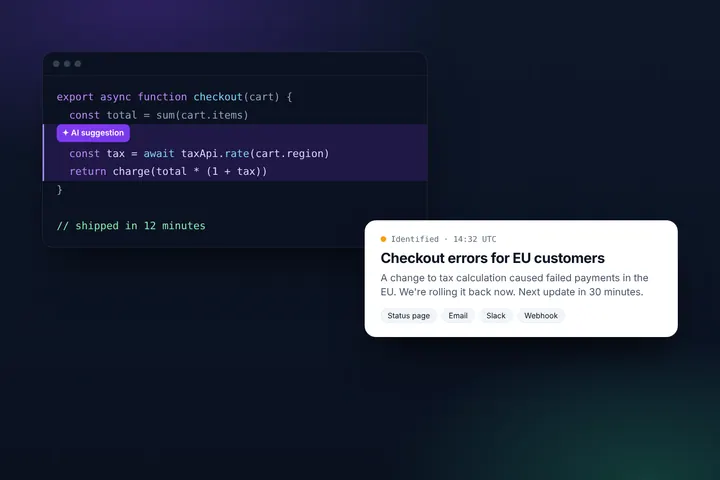
- Lead with what's affected. “Checkout is failing for some EU customers” is clearer than “degraded performance in a subsystem”.
- Keep it to about 180 characters. The status tag and link take up part of the post. Shorter messages go out in full instead of being cut off.
- Don't repeat the status or paste the link. “Investigating” and the incident link are added for you.
- Say what happens next. “Next update in 30 minutes” stops people from refreshing and asking.
- Skip internal detail. Root-cause theories and ticket numbers belong in an internal update, not in a public post.
When to keep an incident off X
Not every incident needs a public post. Mark the record as internal when the issue doesn't affect customers yet, when you're still confirming whether there's a real problem, or when it only concerns your own team. Internal records still reach your other integration channels, and you can change a past entry from internal to public later if the impact grows.
Which plans include the X integration?
The X (Twitter) integration is included from the Start Up plan at $9.99/month, together with email and webhook integrations, the REST API and endpoint monitoring. Business and Enterprise add Slack and a custom domain. See plans and pricing for the full comparison.
Get started
Create a status page, connect your X account under Integrations, and your next public incident or maintenance will be posted for you. Read the integrations docs, explore all features, or view the demo status page.